
Changing your email address
To change or update your existing email address:
- Go to your profile
- Press Settings and select Account settings
- Choose Change next to your email address
- Press Send confirmation email
- Open the email message that you’ll receive to your current email address and press Change email
- Enter your new email address and press Change
- You’ll receive a confirmation message to your current email address — open the message and press Confirm this email. You’re done!
Follow the steps below to add a new email address and confirm it:
- Go to Settings, then Account settings
- Select Change next to your email address
- Choose I don’t have access to this email
- A verification pop-up will appear. Select Verify your identity and Start verification
To complete verification, you’ll need to:
- Upload an identity document (an ID card, a passport, or your driver’s license)
- Record a selfie in the prompted camera window
Upon successful verification, you’ll receive a message in your Vinted inbox with a link to change your email. The link is valid for 24 hours.
For successful verification, the first and last name on your ID document must match the name on your Vinted Balance.
If your name has legally changed or is no longer correct, contact us and let us know that you need to update the name linked to your Vinted Balance. We’ll help you with the next steps.
If verification is unsuccessful, you can try again by following the same steps. Make sure the images are not blurry and the lighting is good.
If you receive an error at the end of the verification process, you’ll get a message in your Vinted inbox from us with a link to our Help Centre article, where you can contact our support team.
Learn about what you can do if you’re having issues updating your email address.
Registered using email
IIf you get an error at the end of self-verification or cannot complete it, we can help you update your email address. Press “Contact us” at the end of this page to get help from our support team.
We’ll need confirmation that you own the account. Please send us your new email address and attach either:
- A photo/screenshot of your bank statement with recent Vinted charges or withdrawals. Your bank statement should show:
- Your full name (matching the name in your Vinted Wallet)
- Your bank account number
- The date of the last purchase or withdrawal
- The monetary amount of the purchase or withdrawal
- A photo of the payment card used for recent purchases on Vinted. The payment card should show:
- Your name
- The last 4 digits of the card number
- The card expiry date
- The card issuer (bank or other financial institution)
- The card type (Visa, Mastercard, etc.)
You’ll also need to show a handwritten note with your Vinted username and the current date next to the payment card.
If you don’t have any proof of payments related to Vinted, you can provide:
- A photo of a valid payment card next to a handwritten note with your Vinted username and the current date. The payment card should show:
- Your name
- The last 4 digits of the card number
- The card expiry date
- The card issuer (bank or other financial institution)
- The card type (Visa, Mastercard, etc.)
Here’s an example of the required payment card information:
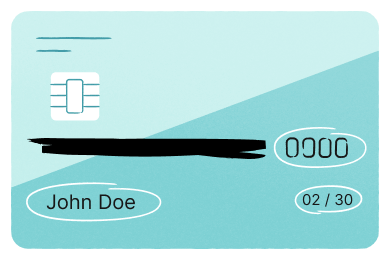
For your privacy, you should hide unrelated personal information on your bank statement and the remaining digits on your payment card when sending photos to our team. Avoid sending photos of personal identity documents too.
These details are only used to confirm ownership of an account and we don’t save them. For more information about the collection and use of your personal data and your rights in relation to it, please visit our Privacy Policy.
Registered using Apple ID
If you used your Apple ID to register, you can only log in using this method, not an email and password combination.
Here’s how to resolve common Apple ID login issues:
- Not receiving the confirmation email to update your email address?
If you chose to hide your email address when you registered, make sure ‘email forwarding’ is turned on in your Apple ID settings. This ensures that emails can be forwarded correctly to your linked email inbox. - Don’t have access to the email address linked with your Apple ID?
When you register with your Apple ID and choose to hide your email, Apple creates an encrypted email address that forwards messages to your main email. The encrypted email address usually looks like this: xxxx@privaterelay.appleid.com.
To access it, you’ll need to change your linked email address in your Apple device settings. For more information, please visit Apple support.
Visit Apple Support for more information about managing your Apple ID sign-in settings.
- The confirmation email is valid for 24 hours. After this time, please go through the above steps once again, and you’ll receive a new confirmation message.
- The confirmation messages might end up in your email's Spam or Junk folder, so please check them as well.